
You expected an alert and nothing came. Finding out why is simple, fast and accurate. Check the Log in a few seconds, or click Explain on the alert row. You can also tell or ask AI Trading Assistant by voice or in writing. Then you know where to look: at the alert itself, or at the place it should have reached.
The example: you expected an alert when a 15m candle on EURUSD closed above 1.09, and your phone showed nothing.
Look in the Log
Click the lightning icon (Alerts) in the top toolbar, then open the Log tab.
Find the entry by its symbol and its first line. The first line says what happened, or shows the message you wrote. Older entries show the alert's name there. The newest entries are at the top.
Compare the time of the entry with the moment you expected. The Log shows times in your computer's time zone.
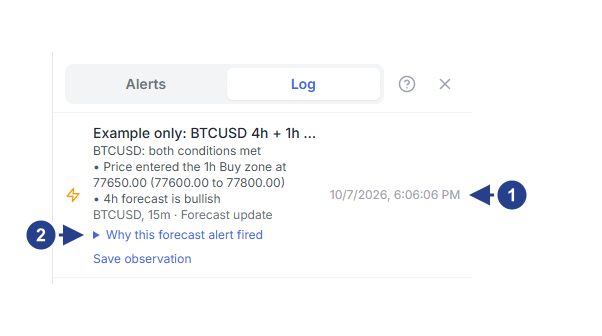
The time the alert fired. Compare it with the moment you expected.
Why this forecast alert fired: on a 4CM-AI alert, click it to read what the forecast did.
If you find the entry, the alert fired and the problem is the delivery. Read the next section. If there is no entry, the alert did not fire. Go to "It did not fire" further down.
It fired, but nothing arrived
The condition worked, so check the place that stayed quiet. Open the alert with Edit and look at Notifications on the Options tab.
Show in-app notification: the notice appears only while ForecastCity is open in a browser. The Log entry is the copy you can always read later.
Notify my devices: read the line under the checkbox. "This browser is connected and enabled." means this browser is ready. When the Alerts panel shows "Device delivery is inactive · Check connection", no device can receive alerts right now. The Alerts panel shows that notice only while at least one alert has Notify my devices ticked. Choose where your alert arrives shows how to connect one again.
Telegram: the row should read "Telegram connected ✓".
Send email: the alert goes to the email address of your account. Look in your spam or junk folder too.
Send to MetaTrader: the ForecastFollow EA must be running, and your account number must be on the MetaTrader Accounts page. A popup that waits more than 24 hours is dropped.
Webhook URL: check the address and your receiver's own log. The Log in ForecastCity shows that the alert fired, not what your receiver did with it.
Email, Telegram and webhook messages also need a subscription plan that includes them.
There is also an hourly limit. Your account can send at most 20 alerts in one hour to your devices, email, Telegram, MetaTrader and webhooks. After that, those messages stop until the next hour starts. The hour follows UTC, so in some time zones it starts at half past. The in-app notification and the Log keep working.
For some 4CM-AI alerts, the explanation under the Log entry lists each place with its result, for example "TELEGRAM: sent".
It did not fire
Check the status
Open the Alerts tab and clear any filters. The status sits beside the alert's symbol:
| Status | What it means | What to do |
|---|---|---|
| Active | The alert is running and waiting for its condition. | Check the condition and the settings, as shown below. |
| Stopped: Paused | The alert was paused, by you or because the chart line it watches was deleted. | Press Restart. |
| Stopped: Triggered | It fired its one time with Once only, then stopped. | Look for it in the Log. Press Restart to use it again. |
| Stopped: Alert expired | Its end date has passed. | Open it with Edit, choose a new Expiration and press Save. |
| Error | ForecastCity cannot read its condition, so it stopped. | Create the alert again, then delete this one. |
Each alert row in the list also shows how many times ForecastCity checked it today, such as "Checked 14 times today". Move the mouse over the row and click Explain, the sparkles icon. AI Trading Assistant then explains the alert's status in plain words.
A 4CM-AI alert also shows a line under the status that ends with a reason. For example:
"Outside your schedule": right now it is outside the hours set in Schedule.
"Alert group muted": the alert's group is muted.
"Waiting for a valid forecast" or "Waiting for live prices": fresh data is missing at the moment.
"Waiting for the candle to close": the alert checks again at the next close.
"Conditions were already true. Waiting for a new match": the conditions were already met when you saved, so the alert waits for them to happen again.
"Membership or feature access required": the alert needs a membership, or a feature of a subscription plan, that the account does not have now.
Check the condition and the settings
Move the mouse over the alert and choose Edit.
Read the summary beside the conditions. Check the symbol, each condition's timeframe, what it watches and the value.
On the Options tab, check Trigger, Confirmation timeframe, Expiration, Schedule and Group.
The most common reasons an alert stays quiet are:
A crossing needs a new cross after you save. If EURUSD was already above 1.09 when you pressed Create, price has to fall below 1.09 and cross it again.
With Once per bar close, only the close counts. A 15m candle that rose to 1.0905 but closed at 1.0895 does not fire the alert.
breaks and bounces off wait for candles to close, whatever the trigger.
Outside the hours in Schedule, the alert does not fire, and nothing is saved for later.
Alerts in a muted group are not checked. They still show Active in the list.
Some markets close at certain hours, such as forex at the weekend. Some symbols send volume later than prices. A 4CM-AI condition also needs a fresh forecast and a live price.
When the editor will not save
Some problems stop an alert before it is saved. Create stays grey. Move the mouse over it to read the reason. The most common ones:
A message that starts with "These conditions are moments, not states". It appears when two moments joined with and are checked at different times, for example on two timeframes. They can never happen together. Join them with or, or change one into a condition that stays true, such as is above.
"An alert can hold up to 10 conditions. Remove one." Parentheses can also nest only a few levels deep.
"One 4CM-AI direction and one zone condition per timeframe."
"Combine 4CM-AI conditions with the other conditions using and. Put the other conditions in parentheses to use or between them."
"This alert carries too many chart lines to save. Remove one condition."
"Create a separate alert to switch between 4CM-AI and other conditions." A saved alert cannot switch between the two.
Features outside your subscription plan do not keep Create grey. Instead, choosing 4CM-AI, a second condition, a chart line, Send email, Telegram, Webhook URL or a watchlist opens an upgrade card. Pressing Create or Save with one of those features does the same.
After you press Create, "Alert limit reached" means you already have as many active and paused alerts as your subscription plan allows.
In a 4CM-AI alert, a fresh forecast on that timeframe may have no Buy or Sell zone right now. Those zone choices then end in · waits for it. You can still choose them, and the alert waits for a future forecast with that zone. When no forecast is available on that timeframe at all, the choices end in · not available. If a red message with Retry appears at the bottom of the editor, press Retry to load the forecasts again.
Read why a 4CM-AI alert fired
Under a 4CM-AI entry in the Log, click Why this forecast alert fired. On a zone alert, the link reads Why this zone alert fired. It shows what the forecast did and when the alert fired.
Original evidence lists each part with its own time. A zone visit can happen well before the last condition completes the alert. So compare each part with the chart at that time, not with today's chart. Open chart opens the chart for that alert.
A combined 4CM-AI alert has no single price, so the line with its symbol shows "Forecast update" in place of a price. The lines above it say what happened.
Before you contact support
Write down four things: the symbol, the timeframes, the time you expected the alert in your own time zone, and the alert's message. With these, support can find the alert quickly.
Good to know
The Log shows your 100 most recent firings.
Deleting an alert also removes its entries from the Log. To keep the history, pause the alert instead.
The Log uses your computer's clock. The
{{time_iso}}variable in messages uses UTC, so the two can differ.