
An alert helps only if it reaches you. Say you set an alert on EURUSD and then leave your desk. With the right settings, it still reaches your phone, Telegram or MetaTrader. Choosing where it arrives is simple, fast and accurate. Tick your places in a few clicks, or tell or ask AI Trading Assistant by voice or in writing.
In this guide you choose where one alert arrives, connect each place once and check that it works.
Find the notification settings
Open the alert editor. Create a new alert, or move the mouse over an alert in the list and choose Edit.
Open the Options tab.
Look at Notifications on the right. Each row is one place the alert can reach you. You can tick several.
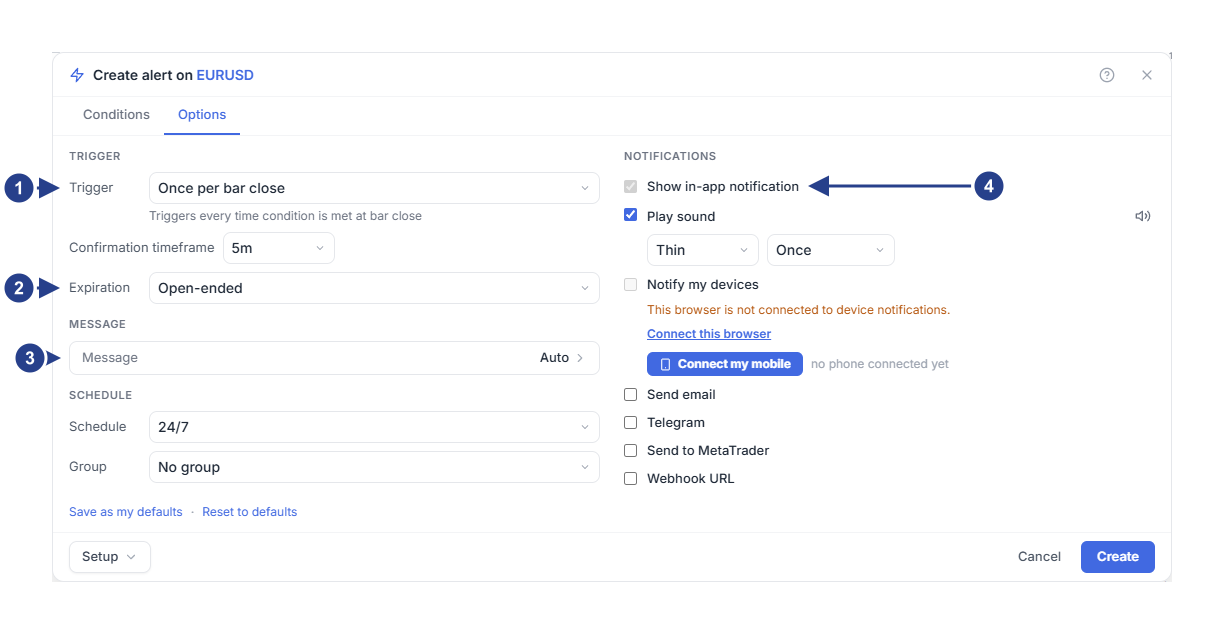
Trigger: how often the alert can fire. It does not change where the alert goes.
Expiration: an end date for the alert.
Message: the one text that every place receives. Auto means the automatic message: what happened, the price at that moment and whether the alert stays on.
Show in-app notification: always on. The places you can add are listed under it.
Places every subscription plan includes
On the screen
Show in-app notification is always on. While ForecastCity is open in your browser, a notice appears at the bottom of the page when the alert fires. Every firing also stays in the Log tab of the Alerts panel.
As a sound
Play sound starts ticked. Choose a tone, such as Thin or Bell, and how long it plays: Once or a number of seconds. Press the speaker button, Preview sound, to hear it. The sound plays in this browser, while ForecastCity is open.
On your computer or phone
Notify my devices sends the alert to your computer or phone, even when ForecastCity is closed. Each device needs a one-time connection. Until one is connected, the checkbox is grey and the connect buttons show under it.
To use this computer, press Connect this browser and allow notifications when the browser asks. The line under the checkbox then reads "This browser is connected and enabled."
To use your phone, press Connect my mobile. Scan the code with the phone's camera, or press Copy link and open the link on the phone.
On the phone, press Turn on notifications and allow them.
Back on the computer, tick Notify my devices if it is not ticked yet. The line under it then says "1 phone connected ✓".
An iPhone needs one extra step before step 3. In Safari, press the share button and choose Add to Home Screen. Then open FC Alerts from the Home Screen. If it asks for a code, type the code shown in the Connect my mobile window.
The phone code works for 10 minutes. If it runs out, press Give me a new code. If this browser blocks notifications, allow them for this site in your browser settings. Then press Check again. If the phone says they are blocked, allow them for ForecastCity in the phone's settings, then open the page again.
In MetaTrader
Send to MetaTrader shows the alert as a popup in your MetaTrader terminal. It needs three things:
The ForecastFollow EA runs in MetaTrader.
Your MetaTrader account number is on the MetaTrader Accounts page of your profile menu. ForecastFollow 2.3 or newer adds it for you when you sign in.
MetaTrader messages are switched on in Notification settings. They are on unless you switched them off.
When you tick the row, the line under it links to the ForecastFollow EA and to Notification settings.
Email, Telegram and webhooks
Send email, Telegram and Webhook URL need a subscription plan that includes them. If yours does not, ticking one or pressing Create or Save opens an upgrade card. That card shows which subscription plan includes it.
By email
Send email sends the alert to the email address of your account.
On Telegram
Tick Telegram, then press Connect Telegram.
Scan the code with your phone. If Telegram is installed on this computer, press Open Telegram instead.
Telegram opens a chat with our bot. Press Start in that chat.
Come back to ForecastCity. The row now reads "Telegram connected ✓".
The link works for 15 minutes. If it runs out, press Give me a new link.
To another service
Webhook URL sends each alert to a web address you choose, such as your own server or a Discord or Slack channel. Write your own alert message and use webhooks explains the address and the data your receiver gets.
Choose the hours an alert is active
Schedule starts on 24/7, so the alert works around the clock. To limit it to your trading hours:
In the left column of the Options tab, set Schedule to Custom hours.
Click the days you want, for example Mo to Fr. With no day selected, the alert runs every day.
Enter the start and the end time. They use the time zone printed beside them. That is your computer's time zone.
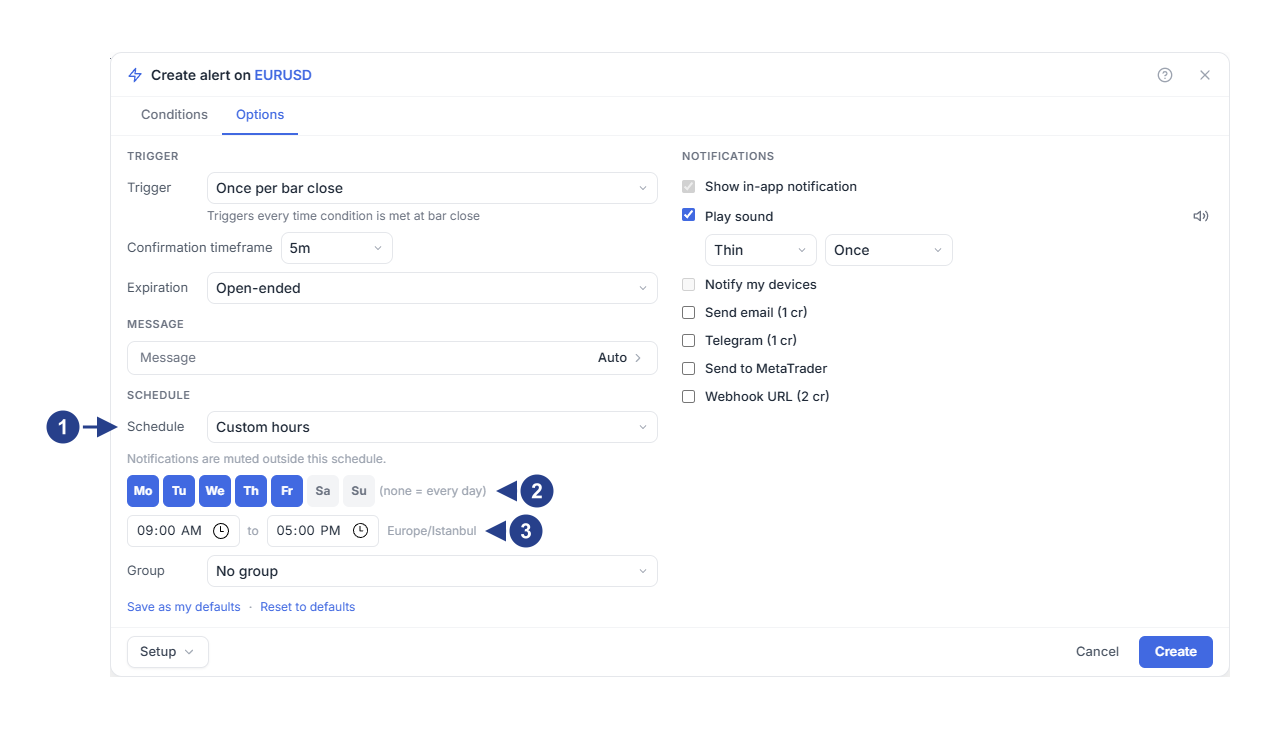
Schedule: Custom hours keeps the alert active only during the days and times below.
The day buttons. With no day selected, the alert runs every day.
The start and end time, and the time zone they use.
Outside these hours the alert does not fire, nothing appears in the Log, and a move that happens then is not kept for later. When the hours begin again, the alert waits for the next move.
Group, under the schedule, puts the alert in one of your groups. A group lets you mute several alerts at once. You create groups in Setups & Groups, as Organize alerts with setups, groups and watchlists shows.
Keep your choices for new alerts
Until you save your own defaults, each new alert ticks the places you have already connected. Notify my devices is ticked when a device is connected. Telegram is ticked when it is linked and your subscription plan includes it. Send to MetaTrader is ticked when your MetaTrader account number is saved. Send email and Webhook URL start unticked.
To keep your own choice, set up the tab once and press Save as my defaults at the bottom. New alerts then open with these settings, including the trigger, the sound and the schedule. The group is chosen for each alert and is not saved. Reset to defaults goes back to the starting point.
Save and check that it arrives
Press Create, or Save for an alert you edited.
When the alert fires, click the lightning icon (Alerts) in the top toolbar, open the Log tab and note the time of the entry.
Compare it with what arrived on each place you ticked.
If the Log has the entry but a place stayed quiet, that place needs attention. Find out why an alert did not arrive lists the checks for each place.
Good to know
Every place receives the same message. You write it once, under Message on the Options tab. A webhook can have its own body as well.
Telegram and email add the time in your own time zone. MetaTrader shows its own time beside the message.
With Play sound unticked, most alerts still play a short default tone. To silence all alerts in this browser, untick Alert volume, as Adjust alert lines, list details and sound shows.
A MetaTrader popup waits up to 24 hours for the EA to collect it. If MetaTrader stays closed longer, that popup is dropped.
An end time earlier than the start time runs overnight. For example, 10:00 PM to 02:00 AM keeps the alert active from late evening until 2 in the morning.