
Move a price alert to a new level in seconds by moving its line on the chart with the mouse. You can also tell or ask AI Trading Assistant by voice or in writing to adjust the alert accurately. In this guide you learn how to adjust alert lines, customize the alerts list and control alert sounds.
The example: you have a EURUSD price alert at 1.09 and want to move it to 1.0925.
Open the alert settings
Click the lightning icon (Alerts) in the top toolbar.
Click the three dots above the list (Options) and choose Alerts settings… at the bottom of the menu.
The Settings window opens with Alerts selected in its left sidebar.
You can also right-click an alert line on the chart and choose Alert settings.
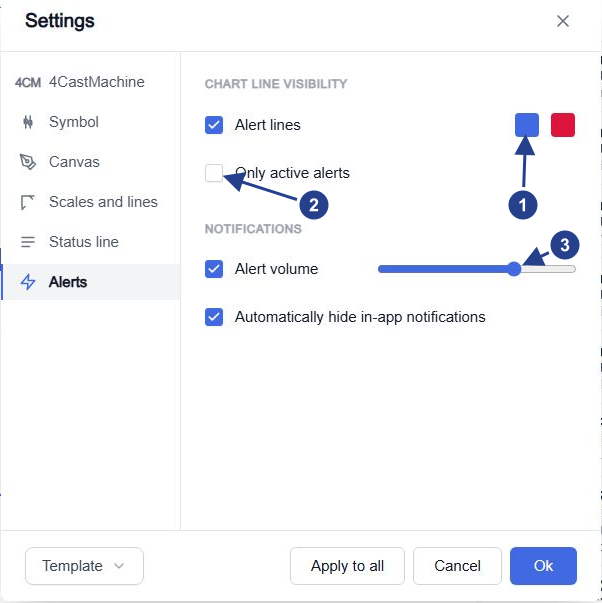
The two colours of alert lines: blue for a level below the current price, red for a level above it. Click a square to choose another colour.
Only active alerts: hides the lines of alerts that already fired and stopped.
Alert volume: how loud alert sounds are in this browser.
Each change applies at once, and Cancel does not undo it. The settings are saved in this browser only.
Show or hide alert lines
A price alert with one condition, such as Price crosses above 1.09, draws a dashed line at its level. The line has a small lightning mark at the right. Untick Alert lines to hide these lines. Hiding a line does not pause its alert.
A line is blue when its level is below the current price and red when it is above. A paused alert's line is grey. These colours are for your alerts only. They do not change the guide-lines 4CastMachine AI draws.
An alert set to Once only stops after it fires (Stopped: Triggered), but its line stays until you tick Only active alerts. Paused alerts keep their grey line even then. Check the status in the list before you rely on a line.
Move a price alert on the chart
Move the mouse over the alert line. A label shows the alert's name, with a bin button (Delete alert) beside it.
Move the line with the mouse to 1.0925 and let go. The new level is saved a moment later.
Right-click the line and choose Edit… to check the exact value.
The level is rounded to the price precision of the chart. Check the value when several lines sit close together.
If the alert had already fired and stopped, moving its line starts it again. Its status goes back to Active.
The right-click menu also has Pause (or Resume) and Delete. Delete and the bin button remove the alert at once, without asking. Choose Pause to stop it for a while.
Moving the line on the chart adjusts the level of a price alert. To turn a line you drew into an alert, see Create alerts on chart lines.
Turn the alert sound down
Open Alerts settings… again.
Move the Alert volume slider to the left. To mute alert sounds in this browser, untick Alert volume.
Choose whether Automatically hide in-app notifications stays ticked. When it is ticked, each popup closes itself after 8 seconds. Untick it to keep them on screen until you close them.
Alert volume controls every alert sound in this browser. An alert with Play sound ticked plays the tone chosen on its Options tab. When Alert volume is ticked, most other alerts play a short default tone. Your phone and Telegram keep their own sound settings.
Choose what the alerts list shows
Click the three dots above the list (Options). Under Customize list, tick the details each row should show:
Name: the alert's name, in bold. It is the same label you see on its line.
Message: a short description of the condition. A price level reads like "Crossing Up 1.09". A line or several conditions read as the editor writes them, such as "1h Price touches 1h Resistance R1".
Instrument logo: a round badge with the first letters of the symbol.
Last triggered: when the alert last fired, as "last fired" and a date.
Keep Last triggered on when you follow an alert that fires more than once. Keep Name on to tell the rows apart before you use their buttons.
If a line or an alert is missing
Check Alert lines and Only active alerts in the alert settings.
Only a price alert whose single condition compares price with a number has a line. Alerts on drawings, moves or ranges, and alerts with several conditions, have none. A price alert also has no line when its condition's timeframe differs from the alert's own timeframe. The alert's timeframe is the one shown after the symbol in the list.
Check the filters in the Options menu of the list: Show alerts, Filter alerts and Show alerts by type.