
A pattern alert tells you when a candlestick pattern completes, such as a bullish Engulfing. One condition can watch several patterns at once, so you no longer have to scan every candle yourself. ForecastCity makes this simple, fast and accurate. Tick your patterns in seconds. You can also tell or ask AI Trading Assistant in your own voice or in writing to set up the alert alongside 4CastMachine AI forecasts.
The example: EURUSD on 1h candles, a bullish Engulfing or a bullish Morning Star.
Choose your patterns
Open EURUSD in 4CM-AI Charts. Click the lightning icon (Alerts) in the top toolbar and press +.
In the first box, choose Candles. A pattern button appears. It reads Pattern… until you choose a pattern.
Click the pattern button. The pattern list opens, grouped under Bullish, Bearish, Neutral and Advanced.
Under Bullish, tick Engulfing and Morning Star.
Click outside the list, or press
Esc, to close it. The button now shows how many patterns you chose, for example 2 patterns.
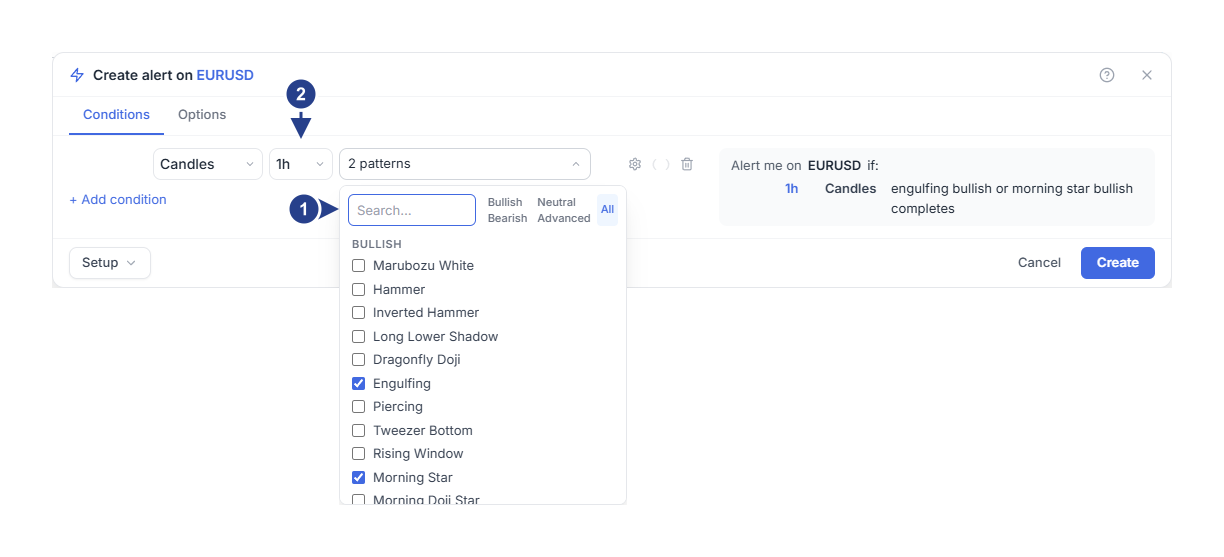
Search…: type part of a name to find a pattern. The filters beside it (Bullish, Bearish, Neutral, Advanced and All) show one group or all of them.
1h: the timeframe. The pattern must complete on a candle of this size.
The filters and the search only change what the list shows. They never tick or untick a pattern. Each time you open the list, it shows All again.
Many patterns come in a bullish and a bearish version, for example Engulfing. Tick the one in the group you mean. In the summary on the right, the row shows 1h, Candles and Engulfing (bullish) or Morning Star (bullish) completes. The summary sentence omits Candles and reads 1h Engulfing (bullish) or Morning Star (bullish) completes.
Set the timeframe and the trend filter
Set the timeframe box to 1h.
Move the mouse over the row and click the gear at its right end (Details). A second line opens with Trend filter.
Leave Trend filter on No detection for this first alert.
No detection counts every pattern the moment it completes. The two other choices add a trend check. It applies to patterns that only make sense after a move, such as a Hammer after a fall.
SMA50: such a pattern counts only when its last candle closes on the matching side of the 50-candle simple moving average. That is below the average for a pattern that needs a fall, and above it for one that needs a rise.
SMA50, SMA200: the same check, and the 50 average must also be below the 200 average for a fall. For a rise, it must be above.
Patterns that need no trend, such as Doji or Marubozu, count with every choice. The chart's Candlestick Patterns indicator has the same setting, called Trend Rule, and it starts on SMA50. With No detection, the alert can fire on patterns the chart does not mark. Choose the same value in both when you want them to agree.
Choose how often it fires and save
Open the Options tab. Trigger starts on Once only, unless you saved your own defaults. With it, the first completed pattern fires the alert, and then the alert stops.
To keep watching, set Trigger to Once per bar close. A bar is one candle. Set the Confirmation timeframe box to 1h, the same as the condition.
Check Message, Expiration and the places under Notifications, then press Create.
Start from a pattern on the chart
When the Candlestick Patterns indicator is on your chart, you can start the alert from a pattern marker.
Right-click the candle that carries the marker.
Choose the alert item. It names the pattern, for example Add alert on Engulfing - Bullish. When several patterns share the candle, it gives their number instead, for example Add alert on 2 patterns here.
The editor opens with those patterns ticked, the chart's timeframe, and the indicator's Trend Rule as the trend filter. On a candle without a marker, the item reads Add alert on Candlestick Patterns and no pattern is ticked yet. Check the patterns and the timeframe before you save. The alert watches for new patterns only. It does not alert you about the one you clicked.
When does it fire?
The alert checks your patterns each time a 1h candle closes. A pattern counts only on the candle that completes it, after that candle has closed. Say you saved the alert at 09:20.
At 10:00 the first candle closes after you saved. The alert takes this as its starting point.
At 10:40 the candle that opened at 10:00 looks like a bullish Engulfing. It is still open, so nothing happens.
At 11:00 that candle closes and the Engulfing is complete. The alert fires.
An open candle can look like a pattern and lose the shape before it closes. That does not count. With Once only, the alert stops after it fires. With Once per bar close, it keeps watching for the next completed pattern.
Good to know
With two patterns ticked, either one fires the alert. To require something else as well, add a condition joined with and, for example RSI is above 50 on 1h.
Two pattern conditions on the same timeframe can be joined with and, because they can complete on the same candle. A pattern on 1h and a crossing on 15m are moments on different timeframes. The alert checks each timeframe on its own, so they never count together, even when both candles close at the same minute. Create stays grey. Move the mouse over it to read the reason. The message says these conditions "can never be true at the same time".
The first candle close after you save only sets the starting point. A pattern that completes on that candle does not fire the alert.
In the Advanced group, Counterattack and Separating Lines appear twice, once bullish and once bearish. Move the mouse over a name to see which one it is.
One condition holds 1 to 20 patterns. The trend filters need history: SMA50, SMA200 needs 200 candles on that timeframe. Until then, patterns that need a trend do not count.
If it does not fire
Wait for the candle to close. The alert looks at a pattern only after its last candle has closed.
Check Trend filter. With SMA50 or SMA50, SMA200, a pattern that needs a trend counts only in that trend. The chart marks patterns with its own Trend Rule.
Check that the alert reads Active in the Alerts list. Outside the hours set in Schedule, the alert does not fire, and nothing is saved for later.
If it fired at a time you did not expect, open the Log tab of the Alerts panel. Compare the time there with the closed candles on the chart.