
Keep your alerts organized so you can find and update them in seconds, or apply one setup accurately across a watchlist. Tell or ask AI Trading Assistant by voice or in writing to create, adjust or explain any alert for you. You can also manage every alert with filters, setups, groups and watchlists in the Alerts panel.
The example: every morning you check RSI on EURUSD and GBPUSD. You save the conditions once as a setup, create both alerts from it and keep them in a group called Morning review.
Find an alert
Click the lightning icon (Alerts) in the top toolbar. The Alerts panel opens with your alerts, newest first.
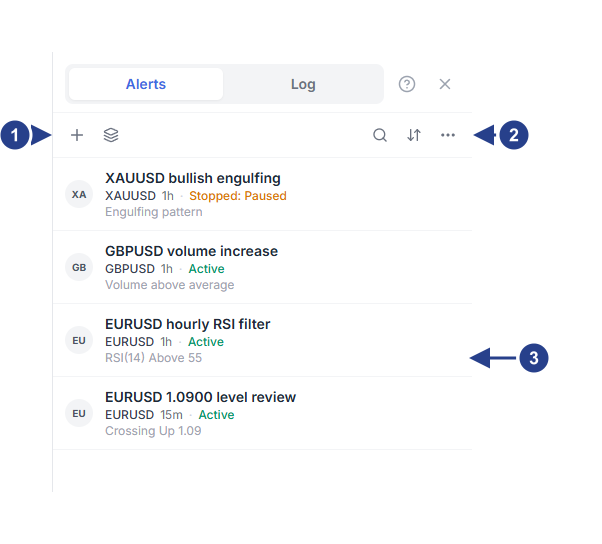
+: create an alert. The icon beside it opens Setups & Groups.
Options: the three-dot menu with filters, actions for many alerts at once and list settings. Search and Sort by date sit to its left.
One alert: its message on top, then its symbol, timeframe and status, then its condition in short.
On each active alert row, a counter such as "Checked 18 times today" shows how many times ForecastCity has checked that alert today.
Search finds alerts by a word from their message or by their symbol.
Sort by date switches between newest first and oldest first.
In the Options menu, choose All, Active only or Inactive only.
Current symbol and Current time interval show only the alerts for the chart you are looking at.
Under Show alerts by type, choose Forecast, Price, Technicals or Watchlist to show one kind of alert.
If the panel says "Nothing matches these filters.", clear the filters before you decide an alert is gone.
Pause, restart, duplicate or delete an alert
Move the mouse over an alert to see its buttons:
Explain (the sparkles icon) opens AI Trading Assistant to explain the alert's conditions and status in plain words. You can also ask AI Trading Assistant to create or adjust an alert for you.
Pause stops an active alert for a while. Its status changes to Stopped: Paused.
Restart starts a paused alert again, or one that stopped after firing once. It waits for a new move. A move that happened while it was stopped does not count.
Duplicate makes a separate copy with the same settings. The copy's message ends with "(copy)".
Edit opens the alert in the editor, with Save in place of Create.
Delete removes the alert after you confirm.
The editor has the same controls at the bottom beside Setup. Click Delete alert to remove the alert, or Pause alert (Resume alert when paused) to pause or restart it.
For many alerts at once, open Options and choose Pause all, Restart all inactive or Delete all inactive. These actions apply to all your alerts, not only the ones a search or a filter shows.
Save a setup you can reuse
A setup is a saved set of conditions, with its trigger and timeframe. Saving one never creates an alert. You find it under Setup, at the bottom left of the alert editor.
Build the conditions in the editor, for example RSI 14 is above 60 on 15m.
Press Setup, then choose Save as… in the menu.
Type a name, such as RSI review 15m, and press Save. The editor confirms that no alert was activated.
Check the button. It now reads Setup: RSI review 15m · v1.
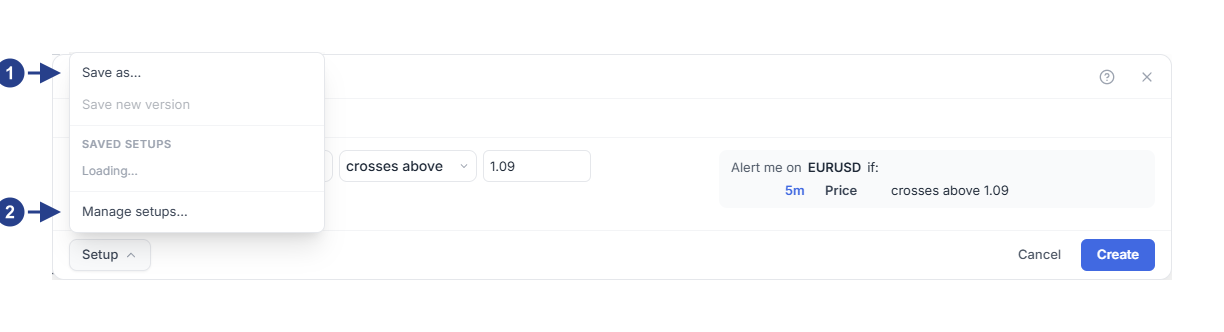
Save as…: save the conditions as a new setup. No alert is created.
Manage setups…: close the editor and open Setups & Groups.
When you change the conditions of a loaded setup, an orange dot appears on the button. Click Save new version to store them as the next version. Your saved setups are listed in the same menu. Click one to load its conditions. Move the mouse over a setup to rename it with the pencil or delete it with the cross. The menu asks "Delete …?" first: press Delete to confirm or Keep to cancel. Alerts already made from the setup keep working.
A setup with a fixed price, a price range or a chart line works only on the symbol it was saved on. On another symbol the editor says "This setup contains a fixed price or selected line. Save a version for this symbol before using it." Indicator conditions, such as the RSI example, work on any symbol.
Create alerts from a setup
Choose Manage setups… in the Setup menu of the editor. The editor closes and Setups & Groups opens. You can also open it with the icon beside + in the Alerts panel.
On the Setups tab, find your setup. Its row shows how often it was used, its timeframe and its trigger.
Press Apply… and type the symbols, for example EURUSD GBPUSD. You can enter up to 20.
Press Create Alerts and read the result, for example "Created 2 alert(s)."
If a symbol could not get an alert, the result also says how many were skipped. Each new alert is named after the setup and the symbol, for example RSI review 15m on GBPUSD. It starts with the in-app notification only. Open it with Edit to add your phone or other places.
Edit setup opens the setup's conditions in the editor. The trash button, Archive setup, removes the setup from the list. Alerts made from it keep working.
Group alerts and mute them together
In Setups & Groups, open the Groups tab.
Type a name, such as Morning review, and press Add.
Open each alert with Edit. On the Options tab, choose the group under Group, then press Save.
Each group row has a speaker button. Mute group stops all its alerts from being checked. Unmute group starts them again, and they wait for a new move. Muted alerts keep their status, so an alert can read Active while its group is muted.
The trash button, Delete group (alerts are kept), removes only the group. Its alerts stay, and they are checked again if the group was muted.
Create alerts for a whole watchlist
A watchlist link keeps one alert, made from a setup, for each symbol in a watchlist. Add a symbol to the list and it gets an alert. Remove the symbol and its alert is deleted.
Put the symbols in one of your watchlists, for example EURUSD and GBPUSD.
In Setups & Groups, open the Watchlists tab.
Choose the watchlist and the setup, then press Create watchlist alert.
Changes to the watchlist reach your alerts a few seconds later. The refresh button, Refresh watchlist alerts, updates them at once and names any symbol it skipped. The trash button, Remove watchlist alert (deletes its alerts), removes the link and every alert it made. Like the alerts from Apply…, these alerts start with the in-app notification only.
Open alerts from the watchlist
Each watchlist row has a small lightning icon at its right end. It is blue when the symbol has an active alert and grey otherwise. On a symbol without alerts, it appears when you move the mouse over the row. Hold the mouse on it to see how many alerts are active, paused or ended. Click it:
With no alert on the symbol, the editor opens to create one. With access to 4CM-AI forecasts, it starts with a 4CM-AI condition on the chart's timeframe. Otherwise it starts with an empty condition.
With one alert, the editor opens on that alert.
With several, a window lists them. Click the one you want to edit.
Good to know
Deleting an alert also deletes its entries in the Log. To keep the history, pause the alert instead.
Your alert limit counts active and paused alerts. Alerts that show Stopped: Triggered or Stopped: Alert expired do not count. At the limit, saving shows "Alert limit reached" with your limit in brackets.
Pressing Save on an alert that shows Stopped: Triggered starts it again. For Stopped: Alert expired, choose a new Expiration first, then press Save. A paused alert stays paused until you click Restart in the list, Resume alert in the editor or Resume on its chart line.
An alert made by a watchlist link comes back if you delete it while its symbol is still in the watchlist. Remove the symbol from the list, or remove the link.