
A price alert watches your level accurately and tells you when price reaches it, so you can leave the chart. Tell or ask AI Trading Assistant by voice or in writing to set one up in seconds. Or follow this guide to create a price alert in a couple of clicks on the chart.
The example: EURUSD trades below 1.09, and you want to know when it rises above that level.
Open the alert editor
Open EURUSD in 4CM-AI Charts and set the chart to the 5m timeframe.
Right-click the chart near the price you want to watch, and choose Add alert on EURUSD at …. The menu item shows the price you clicked.
The alert editor opens with that price already filled in. Check the title of the window: it should read Create alert on EURUSD.
There are other ways to start. Click the lightning icon (Alerts) in the top toolbar and press +, or press Alt+A on the chart to start at the current price. You can also tell or ask AI Trading Assistant to create the alert for you.
The editor is a small window that floats over the chart. You can keep using the chart while it is open. Drag the window by its title to move it. Next time it opens in the same place.
Build the condition
A condition is one row. Read it from left to right, like a sentence: what to watch, on which candles, what has to happen, and at what price.
In the first box, choose Price.
Leave the second box on 5m. This is the condition's timeframe. It starts on the chart's timeframe.
In the third box, choose crosses above.
In the last box, type 1.09.
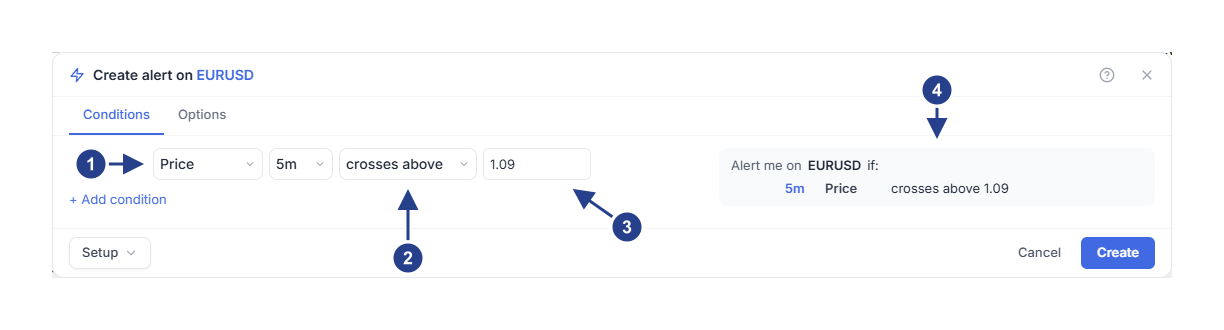
Price: what the alert watches. You can also choose a 4CM-AI forecast, a drawing, an indicator or a candlestick pattern here.
crosses above: what has to happen.
The price level to compare with.
Alert me on EURUSD if: the whole alert in plain words. Read it before you save.
The summary on the right should now say 5m Price crosses above 1.09. If a box is still empty, it has a faint red outline and Create stays grey. Move the mouse over Create to see what is missing.
Choose when it fires
Open the Options tab. It holds everything except the condition: how often the alert can fire, when it ends, its message and where it is sent.
Trigger starts on Once only, unless you saved your own defaults. With Once only, the alert fires the first time price crosses 1.09, even in the middle of a candle. Then it stops. Once only is a good choice for a first alert.
Some traders only care about candles that close above a level, and want to ignore quick spikes. If that is you, change two settings:
Set Trigger to Once per bar close. A bar is one candle. A Confirmation timeframe box appears under it.
Set Confirmation timeframe to 5m, the same timeframe as your condition.
Now the alert waits until a 5m candle closes above 1.09. It keeps running after it fires, so it can alert you again the next time a candle closes back above the level.
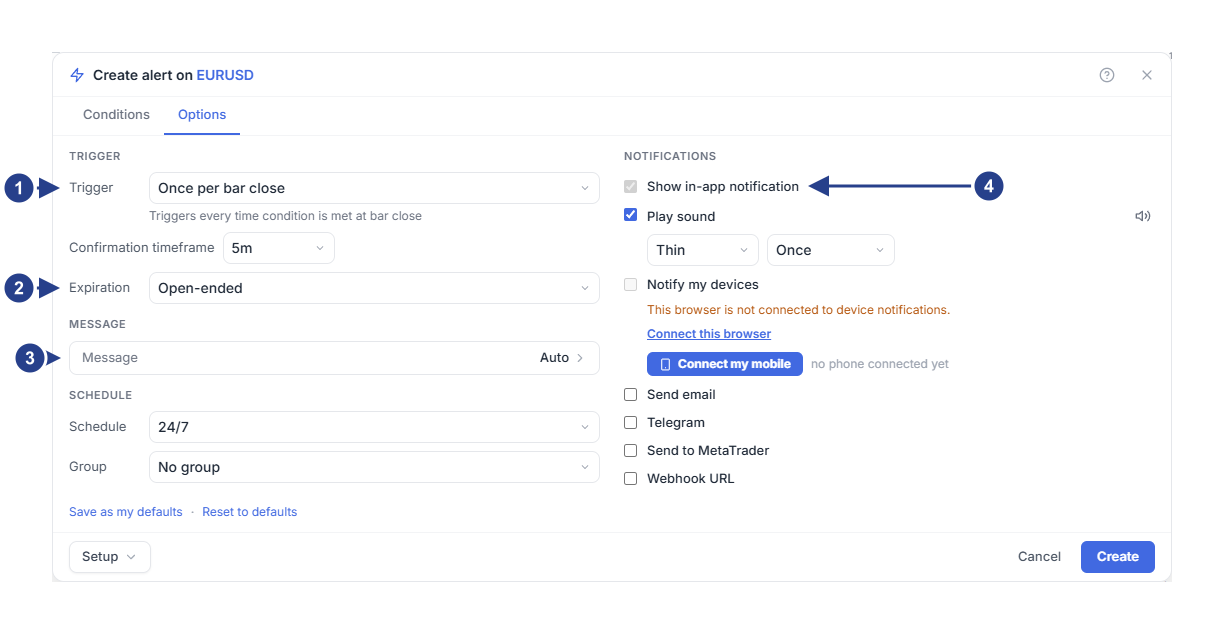
Trigger: how often the alert can fire. The line under it describes your choice.
Expiration: an end date for the alert. Open-ended means it has none.
Message: leave it on Auto for the automatic message. It says what happened, the price at that moment and whether the alert stays on.
Show in-app notification: always on. You can tick more places under it.
Choose where it reaches you
Look at Notifications on the right of the Options tab.
Show in-app notification is always on. The alert appears in 4CM-AI Charts and stays in the alerts Log.
Play sound plays a tone in this browser when the alert fires.
Notify my devices reaches your computer or phone even when the chart is closed. Each device needs a one-time connection first. Read the line under Notify my devices to see whether a device is connected.
Until you save your own defaults, the places you have already connected (a device, Telegram or MetaTrader) are ticked for you on each new alert. To connect a phone, Telegram or MetaTrader, follow Choose where your alert arrives.
Save and check the alert
Go back to the Conditions tab and read the summary once more.
Press Create. The window closes.
Click the lightning icon (Alerts) in the top toolbar and find your alert in the list. Its status reads Active.
Active means the alert is running and waiting for price to cross 1.09.
When does it fire?
Say EURUSD is at 1.0880 when you save the alert with Once only.
At 10:02 price rises to 1.0901. It has crossed 1.09, so the alert fires at that moment.
Its message reads "EURUSD crossed above 1.09", then "Price 1.0901." and "This alert is now off. It was set to fire once."
The alert then stops, and its status changes to Stopped: Triggered.
With Once per bar close, the same move is judged when the candle ends. If the 10:00 candle closes at 1.0908 at 10:05, the alert fires. If price has fallen back to 1.0895 by 10:05, the alert keeps waiting. When the alert fires this way, its message says "The 5m candle closed at 1.0908." and ends with "This alert stays on."
Good to know
An alert reacts only to moves that happen after you save it. If EURUSD is already above 1.09 when you press Create, price has to go back below 1.09 and cross it again.
The editor starts with crosses above. For a level below the current price, choose crosses below.
Keep the condition on the chart's timeframe for a simple price alert. If you give it another timeframe, the alert checks the price only when a candle of that timeframe closes.
The operator crosses above happens at one moment, when price moves from below the level to above it. The operator is above stays true while price remains above the level. The difference matters when you combine conditions.
To change the level later, move the mouse over the alert in the list and choose Edit. The same window opens with Save instead of Create. To stop an alert for a while without deleting it, choose Pause.
When the alert fires, open the Log tab of the Alerts panel to see what happened and when.