
4CastMachine AI keeps a forecast for each timeframe and updates it as the market moves. A forecast change alert makes following those updates simple, fast and accurate. You review your chart at the right moment instead of checking all day. Set up the alert in a few clicks, or tell or ask AI Trading Assistant by voice or text to create it.
The example: you follow EURUSD on 4h and want to know when the 4h forecast changes.
What counts as a forecast change?
The Forecast panel on the right of the chart, titled 4CastMachine AI, shows each timeframe's forecast in one line. A line such as Bullish above 1.0850 has two parts. Bullish is the direction. 1.0850 is the pivot, the key price level of that forecast. Other lines read like Bearish below 1.0920 or Range 1.0850 ~ 1.0920.
new direction or pivot fires when either part changes:
The direction changes, for example from Bearish below 1.0920 to Bullish above 1.0850.
The direction stays, but the pivot moves, for example from Bullish above 1.0850 to Bullish above 1.0880.
On every timeframe except D, only these two parts count. A new forecast that keeps both, or only moves a zone or a target, does not fire the alert.
The Daily (D) forecast is different. A new D forecast often keeps its direction and pivot and moves its arrows, its targets or its zones. On D, the condition is called new forecast, and it fires when any of these parts changes:
The direction or the pivot.
The green forecast arrows.
The take profit levels, which the chart draws as the Profit zone.
The Buy zone or the Sell zone.
Create the alert
Open EURUSD in 4CM-AI Charts, click the lightning icon (Alerts) in the top toolbar and press +. The window title reads Create alert on EURUSD.
In the first box of the row, choose 4CM-AI. The row now shows a forecast timeframe and a condition. If 4CM-AI is greyed out, move the mouse over the box to read why.
Set the forecast timeframe to 4h.
In the last box, choose new direction or pivot. The summary reads 4h 4CM-AI new direction or pivot.
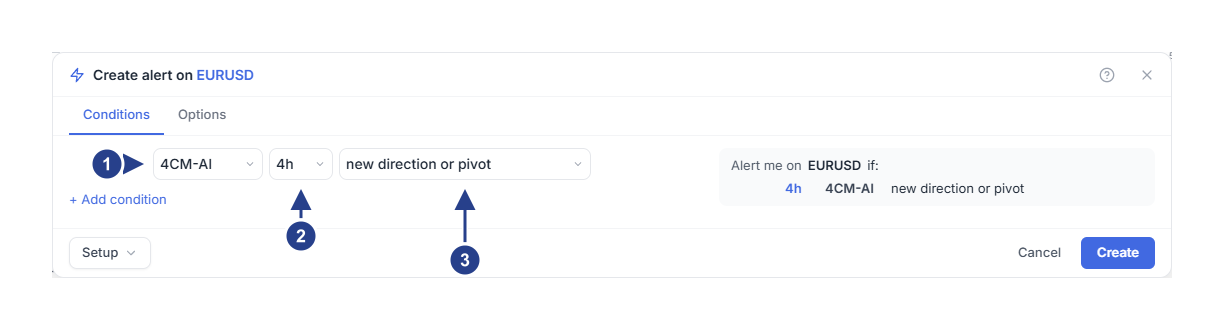
4CM-AI: the forecast source. It is the first choice in the same list as Price and the indicators.
4h: which forecast to watch. 4CastMachine AI makes a separate forecast for each timeframe.
new direction or pivot: what has to happen. The same list holds the directions and the Buy and Sell zone conditions.
You can choose the 5m, 15m, 30m, 1h, 4h, D, W or M (monthly) forecast. On D, the last box shows new forecast in place of new direction or pivot. With Once per bar close, there is no Confirmation timeframe box when the alert watches only forecast direction or change conditions. Confirmation timeframe appears only when an alert also has a zone, price, candle or indicator condition.
Choose how often it fires
On the Options tab, Trigger starts on Once only, unless you saved your own defaults. The alert fires at the first change and then stops. That suits a single review.
To hear about every change, choose Once per bar close. The alert keeps running. It fires the moment each new forecast arrives, also when the market is closed. Under the trigger, the editor says "This alert watches only the 4CastMachine AI forecast, so it fires the moment a new forecast arrives."
Press Create. The editor first checks that the forecast is up to date and shows "Checking fresh forecasts...". The forecast as it is now does not fire the alert. It waits for the next change.
What happens next?
Say you save the alert at 09:00, while the 4h forecast reads Bearish below 1.0920.
At 11:00 a new 4h forecast still reads Bearish below 1.0920. Nothing happens.
At 13:00 the 4h forecast becomes Bullish above 1.0850. The direction changed, so the alert fires.
With Once only, the alert then stops. Its status reads Stopped: Triggered.
While the alert waits, the Alerts list shows its status under the name, such as "Forecast · Cycle 1 · Waiting for your conditions". The number counts how many times the alert has started watching from the beginning.
See what changed
Open the Log tab of the Alerts panel. The entry starts with what happened, for example "EURUSD: 4h forecast turned bullish". The line under it shows the forecast before and after: "Before: bearish below 1.0920. Now: bullish above 1.0850." The line with the symbol reads Forecast update, because a forecast alert has no single price.
A new D forecast that kept its direction and pivot reads, for example, "EURUSD: new D forecast". The line under it names what is new: "New forecast arrows and take profit. Direction and pivot unchanged: bullish above 1.0850."
Click Why this forecast alert fired. It names the timeframe that changed and the time of the change. Original evidence shows the direction and the pivot before and after. For a new D forecast, it also names the parts that are new, such as the forecast arrows. Click Open chart to open the chart on the alert's timeframe, or the lowest one if it has several. Older forecast alerts show "Forecast changes · Cycle 3" instead.
Use a direction as a filter
The choices turns bullish, turns bearish and is range bound check the forecast's direction right now. On its own, turns bullish fires when the 4h forecast turns bullish. Next to another condition, the 4h forecast must be bullish at the moment the alert fires.
If the 4h forecast is already bullish, the list shows turns bullish · current. You cannot choose it on its own, because the alert would be true the moment you save it. First add the condition you want to wait for, such as a zone condition, then choose the direction. If the whole alert is already true when you save, the editor says "This direction is already true. Add another pending condition; creating an alert does not trigger it."
A bullish reading from earlier does not count once the forecast has changed. The choices new direction or pivot and new forecast are different. In a combination, the alert remembers the change until it fires.
Combine it with other conditions
Each forecast timeframe takes one direction and one zone condition. A second 4h direction is refused with "One 4CM-AI direction and one zone condition per timeframe."
Price, indicator, pattern and line conditions join the same alert with and. For or between them, put them in parentheses. Otherwise the editor says "Combine 4CM-AI conditions with the other conditions using and. Put the other conditions in parentheses to use or between them."
A saved alert keeps its kind. You cannot add a 4CM-AI condition to a saved alert that has none, or remove the last one from a forecast alert. The editor says "Create a separate alert to switch between 4CM-AI and other conditions."
For examples with several timeframes, read Combine forecasts from several timeframes in one alert.
Use the Forecast panel
Each timeframe in the Forecast panel has quick buttons. They work at once, without the editor.
Lightning button: switches a forecast change alert for that timeframe on or off. Each lit timeframe alerts on its own. On the D row, it alerts on any new D forecast, including new arrows, take profit, or Buy and Sell zones.
Arrow button: alerts when the forecast turns to a direction. The first click picks the direction opposite to the current one, and the next click switches it off. When the forecast is a range, the clicks go bullish, then bearish, then off.
Zone button: opens the editor with Add or edit a zone condition.
For one symbol, these buttons make up one alert, the panel's own. Each lit timeframe alerts on its own: the alert fires when any one of them changes. It fires the moment the new forecast arrives, also on a weekend, and keeps running after it fires.
Alerts you create in the editor stay separate. The panel's buttons never change them. Click the gear at the top of the panel, Forecast alert settings, to open the panel's alert in the editor. If you add a price, indicator, pattern or line condition there, or join its timeframes with and, it becomes a separate alert. The buttons then start a new alert of their own.
Good to know
4CM-AI conditions are included with every active membership. They work on symbols that have a 4CastMachine AI forecast, in the markets your subscription plan includes.
An alert with more than one condition needs a subscription plan that includes multi-condition alerts.
Outside the hours you set under Schedule, the alert does not fire. A change in that time is not kept for later.
An older forecast alert may open with this note: "Saving converts this alert to current-direction conditions and starts a fresh cycle. Existing notifications stay in history." Saving turns it into the current kind of forecast conditions and starts watching again from the beginning. Its earlier notifications are kept.
If it does not fire
Compare the Forecast panel line with the one you saw when you saved. Except on D, the same direction with the same pivot does not count. On D, also compare the green forecast arrows, the Profit zone and the Buy or Sell zone on the chart.
Read the line under the alert in the Alerts list. "Waiting for a valid forecast" means the forecast of that timeframe is not available right now.
"Outside your schedule" and "Alert group muted" mean the alert waits for its schedule to open or its group to be unmuted.