
Every alert sends one message to every place you ticked. On its own, the message says what happened, the price at that moment and whether the alert stays on. Add a note about your trading plan to see what you planned before you open the chart. Setting up your alert and its message is simple, fast and accurate. Type it in the editor, or tell or ask AI Trading Assistant by voice or in writing.
If you use your own software, Discord or Slack, a webhook sends each alert there as well, with nothing to copy by hand. This guide covers both.
The example: an alert on EURUSD that fires when price crosses above 1.09 on the 5m chart.
What the automatic message says
When the Message box is empty, the alert writes its own message when it fires. For the example, the message reads:
EURUSD crossed above 1.09
Price 1.0901.
This alert is now off. It was set to fire once.
The first line says what happened, in the words of the alert editor. The next line gives the numbers of that moment. The last line says whether the alert stays on. The example uses Once only, so the alert is now off. With the other Trigger choices, the last line reads "This alert stays on."
Other alerts follow the same order. Here are a few first lines, each with the line of numbers under it:
A line: "GBPJPY touched 1h Resistance R1" and "Price 210.16, line at 210.20."
A break of a line: "GBPJPY broke above 1h Resistance R1" and "The 1h candle closed at 210.32, above the line at 210.20."
An indicator: "BTCUSD: 1h RSI(14) crossed above 70" and "RSI(14) was 71.4 when the 1h candle closed at 105240.50."
A forecast change: "GBPJPY: 1h forecast turned bearish" and "Before: bullish above 209.80. Now: bearish below 209.40."
An alert with several conditions says how many were met. Then it gives one line for each condition that was met:
BTCUSD: both conditions met
• Price crossed above 105000: the 1h candle closed at 105240.50
• 1h RSI(14) is above 55 (now 58.2)
This alert stays on.
With more conditions, the first line reads, for example, "all 3 conditions met" or "2 of 3 conditions met". When only one condition was met, for example with or, the first line names that condition, and its numbers follow.
Write the message
Open the alert editor and go to the Options tab.
Click the Message row. It shows Auto while it is empty. A text box opens under it.
Type your message. The box holds up to 400 characters.
To add a live value, open Available variables under the box. Copy the variable exactly, with its double braces.
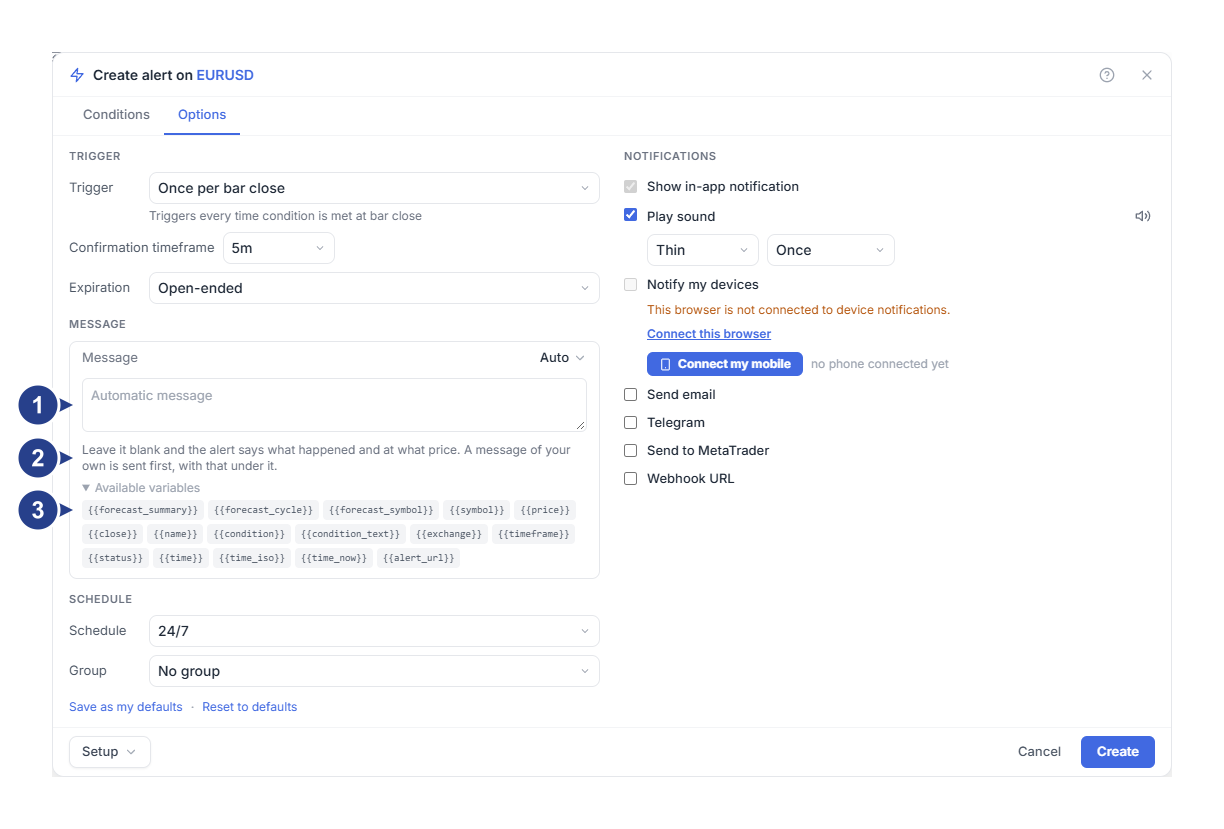
Automatic message: the empty box. Type your own words here, or leave it empty.
The line under the box: "Leave it blank and the alert says what happened and at what price. A message of your own is sent first, with that under it."
Available variables: the live values you can add to your message.
Your words become the first line, and the automatic text follows them. For the example, this message:
{{symbol}} on {{timeframe}}: check the 1h trend before entering.arrives like this:
EURUSD on 5m: check the 1h trend before entering.
EURUSD crossed above 1.09. Price 1.0901.
This alert is now off. It was set to fire once.
The price and the condition are already in the lines under your words. Use your message for what those lines cannot say, such as your trading plan.
A message you type is also the alert's name in the Alerts list. Without one, the list shows a name made from the condition. For a price level the name is short, such as "EURUSD crossing up 1.09". A line or several conditions read as the editor writes them, such as "GBPJPY: 1h Price touches 1h Resistance R1". When you change the condition, this name changes with it. When you open the alert again, the Message box is still empty. Alerts you saved earlier without a message show their name in this form too.
What each place shows
Every place gets the same message, laid out for that place:
| Place | What it shows |
|---|---|
| The notice in the app | The first line in bold, with the numbers under it. |
| Notify my devices | The first line as the title, with the other lines under it. |
| Send to MetaTrader | The first line as the title, with the other lines under it. MetaTrader shows its own time beside the message. |
| Telegram | The message, the time in your own time zone and a link to the chart. |
| Send email | The message, with the date and the time in your own time zone. |
| Webhook URL | Discord and Slack get the message with the time in UTC. With Raw JSON, your software gets the variables below. |
Telegram writes the time like this: "24 Sep, 11:02 London time". If the time zone is wrong, choose yours under Timezone on the Your profile page. When ForecastCity does not know your time zone, the time is in UTC.
The link in a Telegram message, an email, a phone notification or a MetaTrader popup opens the chart of that symbol with the Alerts panel. For most 4CM-AI alerts, it opens the chart with the Alert observation of that firing.
Add live values with variables
A variable is replaced by its value when the alert fires. These are the variables in Available variables:
| Variable | What it writes | Example |
|---|---|---|
{{symbol}} |
The symbol | EURUSD |
{{price}} and {{close}} |
The price when the alert fired | 1.0901 |
{{condition_text}} |
What happened, without the symbol | Price crossed above 1.09 |
{{condition}} |
The condition as a short code | CROSSING_UP 1.09 |
{{timeframe}} |
The alert's timeframe | 5m |
{{time_iso}} |
The date and time, in UTC | 2026-09-24 10:02 UTC |
{{time}} |
The same time as a number of seconds, for software | 1790244120 |
{{time_now}} |
The moment the message was sent, as a number | 1790244121 |
{{exchange}} |
Where the prices come from | TwelveData |
{{status}} |
Whether the alert stays on | This alert stays on. |
{{alert_url}} |
A link to the chart of that symbol, with your alerts | a web address |
{{name}} |
Your message with each variable replaced by its value, or the name the Alerts list shows | EURUSD crossing up 1.09 |
For a line, {{condition_text}} reads like "Price touched 1h Resistance R1". With several conditions, it joins the conditions that were met with the word and. After a Once only alert fires, {{status}} reads "This alert is now off. It was set to fire once." For an alert with several conditions, a line or an indicator, {{condition}} reads TREE. This variable is a code for software.
For 4CM-AI alerts, {{forecast_summary}} sums up what the forecast did and {{forecast_symbol}} names the forecast's symbol. {{forecast_cycle}} is a counter that goes up each time the alert starts watching again. A message that holds {{forecast_summary}} gets no automatic lines under it, because the summary already says what happened.
{{price}} and {{close}} stay empty for most 4CM-AI alerts, because they have no single price. {{time_iso}} uses UTC, so it can differ from the clock on your screen. A variable that does not exist stays exactly as you typed it: a misspelled {{prices}} arrives as {{prices}}.
Send alerts to a webhook
A webhook sends each alert to a web address, where your own software, a Discord channel or a Slack channel receives it. Your subscription plan must include webhooks.
On the Options tab, under Notifications, tick Webhook URL. An address box, a Format choice and a body box appear.
Paste the address your receiver listens on. It must start with
http://orhttps://.Set Format to Raw JSON and leave the body box empty.
Press Create, or Save for an alert you edited.
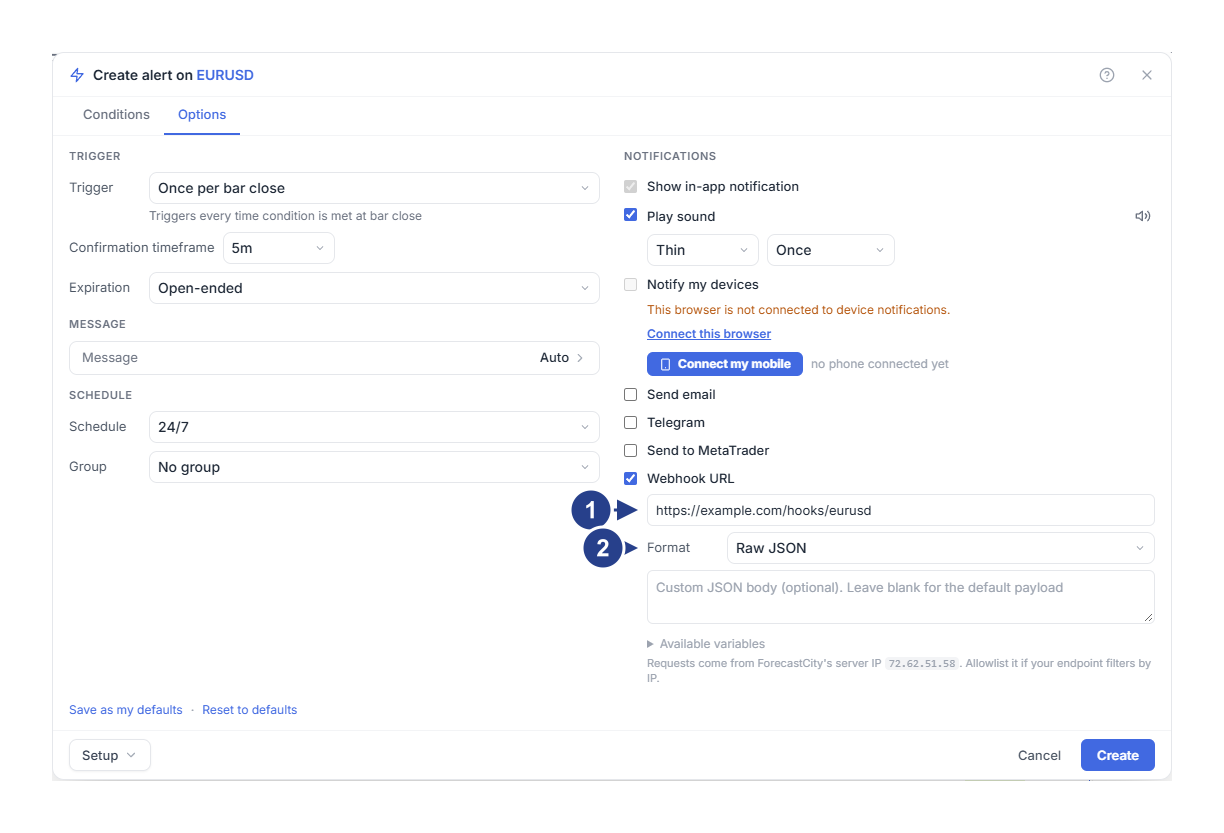
The address your receiver listens on. Use the standard ports, 80 or 443.
Format: Raw JSON for your own software, or Discord or Slack for those services.
With the body box empty, your receiver gets a JSON object with every variable from the table, plus alertId and triggerId. These two identify the alert and this one firing. Look at one real delivery before you build anything that depends on its fields.
Under the box, the editor prints the server address our requests come from. Add it to your allowlist if your receiver only accepts known addresses.
What the address needs
A public address on a standard port: 80 for http, 443 for https. Messages to other ports, to localhost or to a private network address are not sent.
No user name or password inside the address.
An answer within 3 seconds, from that address itself. A redirect to another address counts as a failure.
The editor only checks that the address starts with http:// or https://. The other requirements are checked when a message goes out, so test your address with a real alert. For price and technical alerts, if your receiver has a temporary error, the message is tried up to two more times. A 4CM-AI alert's message is not sent again after a timeout or a server error, because your receiver may already have acted on it.
Write your own webhook body
The body box takes a template with the same variables as the message. It can hold up to 2000 characters. The box lets you type more, but a longer body is refused when you save.
For Raw JSON, a receiver that expects a small object could get this body:
{"symbol":"{{symbol}}","condition":"{{condition_text}}","time":"{{time_iso}}","source":"ForecastCity"}Variables are filled in as plain text. A value that contains quotation marks or a line break can break your JSON. A body that is not valid JSON is sent as plain text.
For a Discord channel, set Format to Discord and use the channel's webhook address. Then write a short line in the body box, for example:
{{symbol}}: {{condition_text}}. Open your alerts: {{alert_url}}For Slack, choose Slack and write the same way. ForecastCity wraps your text in the form each service expects. With an empty box, both get the alert's message, as shown above, with the time in UTC on its last line.
Check the result
Wait for the alert to fire, then open the Log tab of the Alerts panel.
Compare what your receiver got with the Log entry: what happened, the symbol and the time.
The Log shows that the alert fired. It does not show whether your receiver accepted the message, so check your receiver's own log as well. If you see braces such as {{prices}}, a variable name is misspelled. If your receiver rejects the body, check the JSON.
Good to know
The message goes to every place you ticked. The webhook body goes only to the webhook.
Discord shows up to 1900 characters and Slack up to 3000. Longer text is cut.