
A volume alert tells you when a candle trades much more than usual. A sudden jump in volume often marks news or a strong move, and the alert lets you stop watching every candle. ForecastCity makes this simple, fast and accurate. Set up the alert in a few clicks. You can also tell or ask AI Trading Assistant in your own voice or in writing to build it alongside 4CastMachine AI forecasts.
You choose how many candles make up "usual" and how many times higher the volume must be. The alert compares each candle with the same symbol's own recent candles.
The example: BTCUSD on 1h candles, with volume above 2 times the average of the 20 candles before it.
Choose a symbol with volume
A volume alert needs volume data. Crypto pairs such as BTCUSD carry real trading volume. Forex pairs, metals and indices usually have no volume in our data. On such a symbol the volume condition can never become true. The alert then never fires.
Create the condition
Open BTCUSD in 4CM-AI Charts. Click the lightning icon (Alerts) in the top toolbar and press +.
In the first box, choose Volume. The row fills in by itself. Volume has one comparison, is above average, followed by two boxes.
Set the timeframe to 1h.
Leave the first of the two boxes after is above average on 20. This is how many candles the average covers.
In the box after ×, type 2. It starts on 1.5.
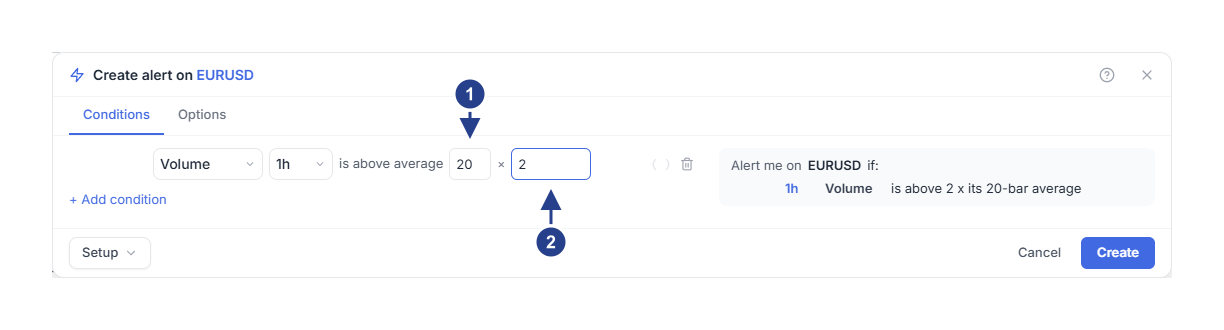
20: the average period, how many earlier candles make up the average.
2: the multiplier after ×, how many times the average the volume must exceed.
The summary reads 1h Volume is above 2 x its 20-bar average. You set the period and the multiplier, not the volume itself. The average moves with every new candle, and the level the volume must pass moves with it.
Choose how often it fires and save
Open the Options tab. Trigger starts on Once only, unless you saved your own defaults. With it, the first heavy candle fires the alert, and then the alert stops.
To keep watching, set Trigger to Once per bar close. A bar is one candle. Set the Confirmation timeframe box to 1h, the same as the condition.
Optional: open Message and write your own words, for example "BTCUSD 1h volume is high". Leave it on Auto for the automatic message.
Optional: under Expiration, choose an end such as End of day.
Check the places under Notifications, then press Create. The new alert reads Active in the Alerts list.
When does it fire?
The alert checks volume each time a 1h candle closes. It compares that candle's volume with the average of the 20 candles before it. Say you save the alert at 13:20, and the average is 1000 and stays near it. The level the volume must pass is then 2 × 1000 = 2000.
At 14:00 the first candle closes after you saved, with a volume of 1500. That is below 2000. The alert takes this as its starting point.
At 15:00 a candle closes with 2600. That is above 2000, so the alert fires.
At 16:00 another heavy candle closes with 2400. Volume was already above the level at the last check, so there is no new alert.
Volume that stays high for several candles gives you one alert, at the first heavy candle. With Once per bar close, the alert can fire again after a candle closes below the level.
Use volume as a filter for another condition
Say you only want to hear about a moving average crossing when volume is high as well.
Open the volume alert with Edit, or start a new alert.
Press + Add condition. A new row appears, joined with and.
In the new row, choose EMA, keep the period at 20, and choose crosses above.
Open Details and use Compare with to compare the EMA with SMA 50, as shown in Create RSI, moving average and ATR alerts.
Set the new condition's timeframe to 1h, the same as the volume condition.
Leave the join on and. Read the summary, then press Save or Create.
Now both must happen at the same 1h close. The EMA crosses above the SMA, and the candle's volume is above 2 times its average. The volume condition stays true for as long as volume is high. That makes it a good filter, and the crossing decides the moment.
The two conditions make one alert. Choose or instead of and only when either condition alone should fire the alert.
An alert with more than one condition needs a subscription plan that includes multi-condition alerts. Otherwise adding a second condition or pressing Create or Save opens an upgrade card.
Good to know
The average period takes 2 to 200 candles. The multiplier must be above 0 and at most 100.
For some symbols, volume arrives later than the live price. Keeping the chart open does not make it arrive sooner.
When the alert fires, the Log tab of the Alerts panel shows when. To change the period or the multiplier, open the alert with Edit.
If it does not fire
Check the symbol. Forex pairs, metals and indices usually have no volume here, so a volume condition on them stays quiet.
Check the numbers. A large candle does not always carry high volume. Compare the candle's volume with the average and the multiplier you chose.
Wait for the candle to close. The alert checks volume only when a candle of the condition's timeframe closes.
Check that the alert reads Active and has not expired. Outside the hours set in Schedule, the alert does not fire, and nothing is saved for later.